Learn simple but important ways to evaluate your edtech choices By Danise Olague
 “Turn on the subtitles, Ms. Olague!” I clicked on the “CC” button underneath the YouTube video, and the closed-captioning appeared at the bottom of the screen. Suddenly, all my students were looking at the screen with wide eyes, eager to watch the video. In my first-grade classroom, a third of my students were learning English as a second language. Though my English learners were the initial reason I starting using closed-captioning on videos, I soon realized that students with special needs also benefited. As a public school teacher, I had to constantly evaluate how my teaching practices and materials could better include and empower the vast diversity in my classroom.
My students loved having subtitles on during short videos because it gave them more opportunities to interact with and learn from the content. All my students were learning how to read, and the captions helped them connect the audio to the visual representation of text. Plus, the students who struggled with attention didn’t miss out on any information since they could access the content through the voice-over, the visuals in the video, and the text in the captions. I used closed-captioning with BrainPop Jr. content, ClassDojo videos, GoNoodle, and other phonics or science videos on YouTube.
Any classroom teacher will tell you the importance of differentiating instruction and materials for students’ diverse needs. It’s also crucial that when you introduce a new digital learning tool into your classroom, you make sure it will be accessible to your students. That means that a student with a disability (cognitive, physical, or learning) will be able to engage and interact with the content in the same way a student without a disability can.
 Evaluating Accessibility
 Evaluating Accessibility
The next time you introduce a new digital learning tool, consider these three key questions to help ensure you’re meeting all your students’ needs.
1) Is it easy to operate? The definition of “easy” will depend on the target age. An app for young kids, for example, should have large buttons and not too many options on the home screen. Some guiding questions to determine operability:
- Does the digital tool have a clear, consistent, and intuitive navigation menu and path?
- Can the learner pause, go backward, go forward, and go back to the home page easily?
- Can the learner log into the digital learning tool interface independently?
2) Is the content understandable? Users should be able to access the content in multiple ways and without distraction. Use these tips and questions to determine understandability.
- The text should be legible and in a clear font that can be enlarged. Contrast between the text and background should be high, with a dark color font on a light background being the best option.
- A learning tool should have few or no distractions. Is there too much movement? Are there flashy or distracting ads? Can background noises or sounds be turned off?
- Can the learner access the content in various ways? (Examples include through the audio or the visuals, an option to print or read a transcript of text, a magnifier on the text, or through access to information from the images.)
3) Can the content be interpreted by assistive technologies? According to the Assistive Technology Industry Association, “assistive technology (AT) is any item, piece of equipment, software program, or product system that is used to increase, maintain, or improve the functional capabilities of persons with disabilities.” Some examples are: screen readers, prosthetics, specialized keyboards, wheelchairs, timers, reading guides, seat cushions, FM listening systems, pencil grips, graphic organizers, or closed-captioning.
To determine whether a digital learning tool works with various assistive technologies, many operating systems have built-in AT features under “Settings.” It can take a bit of digging and testing to determine AT compatibility, but it’s an important step in evaluating a digital tool before you implement it. Some guiding questions to determine AT compatibility are:
- Can the learner access the information in any images, charts, or tables with a screen reader?
- Can the learner access the content through closed-captioning or a transcript of the material?
- Can the learner access the content by only using the keyboard?
 On Apple iOS (iPads, MacBooks), go into Settings > General > Accessibility > VoiceOver to test the built-in text-to-voice feature. Go to Settings > General > Accessibility > Vision to explore various features such as Zoom, Magnifier, Larger Text, Bold Text, Increase Contrast, and Reduce Motion. Apple iOS also has other features for Siri and hearing.
On Google OS (Chromebooks), go to Settings > Advanced > Manage accessibility features. You can test the Text-to-Speech, Display, Keyboard, Mouse and Touchpad, and Audio features.
For Windows OS (HP, Dell, Lenovo, Microsoft laptops or tablets), go to Control Panel > Ease of Access > Ease of Access Center. Test various features with Narrator (built-in text-to-voice feature), keyboard shortcuts, Cortana, high-contrast settings, speech recognition, and more.
Research and Resources
Accessibility is only the beginning. A truly inclusive classroom goes beyond accessibility and adheres to Universal Design for Learning (UDL). For more information about digital accessibility and UDL, check out the following resources:
- Common Sense Media’s Learning Differences & Special Needs Guide
- Tool Finder on Understood.org
- Universal Design for Learning (UDL): What You Need to Know
- Web Content Accessibility Guidelines (WCAG) 2.1
- Digital Accessibility Toolkit: What Education Leaders Need to Know
- Website Accessibility Under Title II of the ADA
- Apple Accessibility Features
- Windows Accessibility Features
- Chromebook Accessibility Features
I’d love to hear how you’re making your digital classroom accessible to all students. Share in the comments below!
This piece originally appeared on Common Sense Education.
Author
 Danise Olague is a researcher for Common Sense Education, which helps educators find the best edtech tools, learn best practices for teaching with tech, and equip students with the skills they need to navigate the digital world with confidence.
She is a M.A. candidate in the Policy, Organization, and Leadership Studies (POLS) program at the Graduate School of Education at Stanford University.
Prior to graduate school, Danise lived in New Hampshire where she was a consultant for ClassDojo, worked at Dartmouth College with a college access program and with Dartmouth College’s Student Accessibility Services Office. Danise also taught first grade in both New Hampshire and California.
She is a University of California, Berkeley alum and holds a K-8 teaching credential. Danise is passionate about social justice and equity in education, loves dogs, arts and crafts, and running.
Get free resources including full reviews of digital tools, ready-made lesson plans, videos, webinars, and more at https://www.commonsense.org/education.
Follow Danise on Twitter
Further Reading
- Engadget – 3Doodler’s latest kits help kids draw 3D shapes in the classroom
- Education Dive – OER: Myths, realities and results in today’s classroom
- Disability Scoop – Are The Nation’s Schools Following The ADA?

 Thom Markham is one of the pioneers of
  Interview Highlights Timeline
 Considered to be a PBL pioneer, thought leader, and global educator, Thom Markham has shared his expertise in project based learning with over 6000 teachers worldwide. He blends inquiry, positive psychology, 21st-century skills, and innovation into a high performance, service-oriented model of PBL designed to help students become flexible, resilient, committed thinkers and social entrepreneurs.

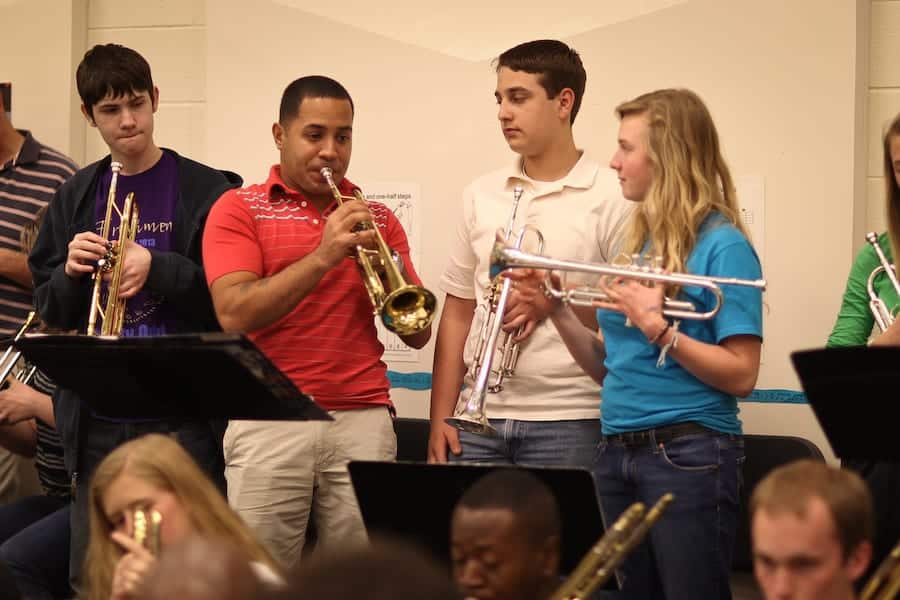
 Turnaround Arts: California was founded in 2014 as a nonprofit organization established to administer the Turnaround Arts program of the John F. Kennedy Center for the Performing Arts and the President’s Committee on the Arts and the Humanities statewide in some of California’s lowest-performing elementary and middle schools.
  The Principal
 Barbara and Turnaround Arts: California envision a statewide network that has different schools at different stages of the process of transformation that support each other and are connected to the resources and tools of the national Turnaround Arts network. One of the things that Turnaround Arts wrestles with is fatigue from boards, parents, and staff because the process of transformation is a long one. While a small number of schools might be able to accomplish a turnaround in about 3 years, published research on ed-reform says it’s more of a 5 to 7 year process for the average district.
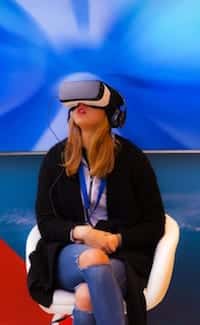 1.) Be especially selective when it comes to what students play.
 VR is a bit of a wild west in terms of its effects, especially when it comes to kids and their brain development and health. Since VR has shown some significant impacts on adults, and kids are a different story in terms of their needs, It’s best to use it in moderation (i.e. 20-minute chunks) until more research has been done.
 Tanner Higgin is Director, Education Editorial Strategy at